How to set up Shared Access
What is Shared Access?
Just as it sounds, Shared Access allows you to share access to your account's data to one, or multiple other accounts. You can choose to grant full access to any account allowing them to read and edit shared data, or read-only access. You can further restrict the access granted to the other accounts by a selection of author names.
- Grant full access to another account to give them read and write permissions to your entire account, or only to a specific list of author names
- Grant read-only access to a user to give them read permissions to a specific list of author names
info
- Each account you share access to and from needs an active Publisher Champ subscription
- If a subscription is canceled, the shared access is revoked until the subscription is re-activated
Grant Full Access to another account
- You can grant Full Access to any valid Publisher Champ email. By doing so, they owner of the email you are granting access to will be able to read & edit any of the data you shared access with them.
1. Make sure the account you want to share access with has already registered with our platform
- The account you will share access with needs to be registered with our platform, otherwise, you will not be able to share access with them
- For example, if you have 2 KDP accounts (1 as a sole trader and 1 registered under your business), then you will need to register 2 Publisher Champ accounts in order to share access between them.
2. Link your accounts
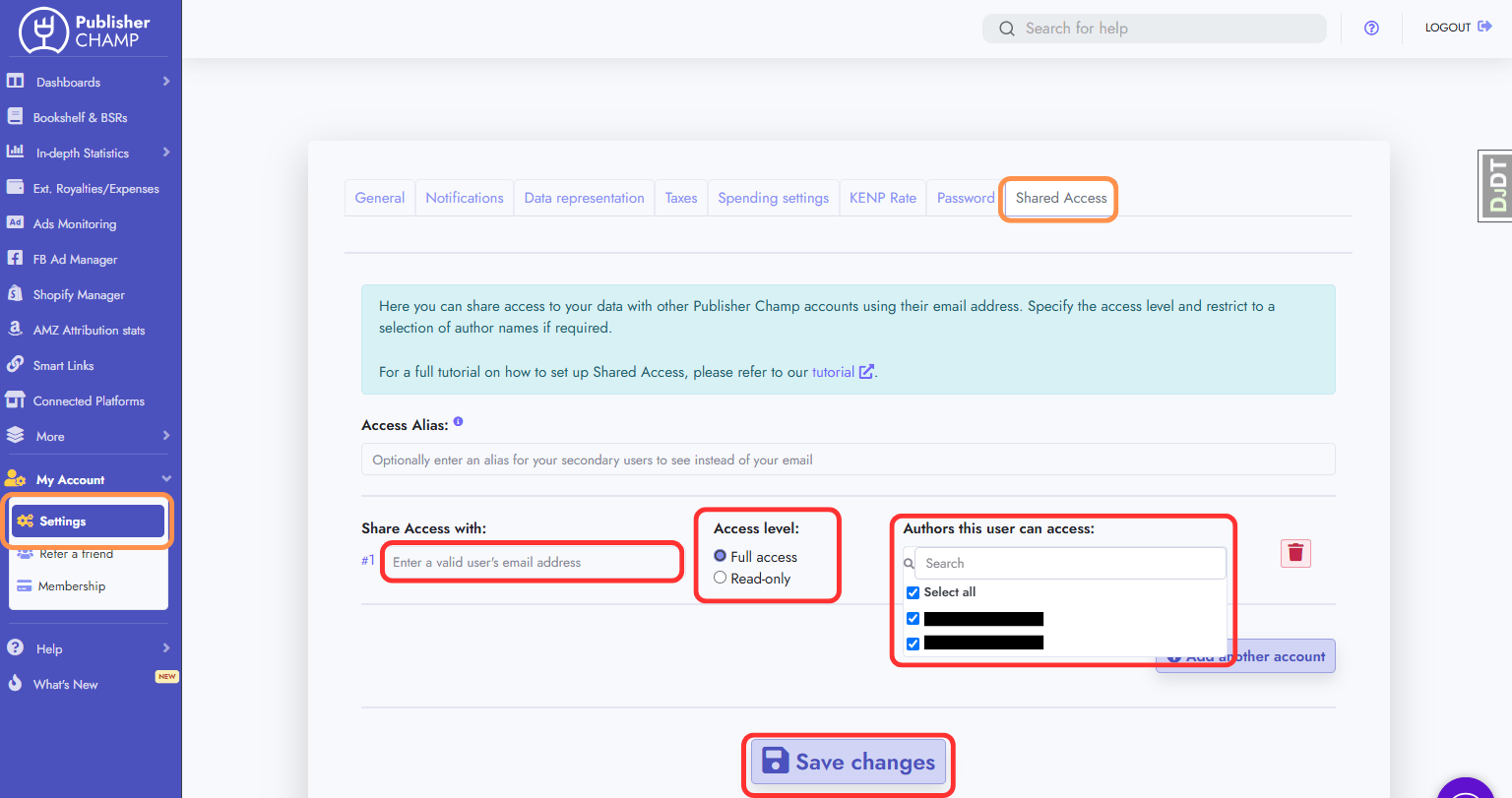
- Log in to the account you want to share access from
- Go to My account > Settings and head to the Shared Access tab
- Enter the Publisher Champ email address of the account you want to grant access to!
- Make sure that this is a registered Publisher Champ email address
- Set the access level set to 'Full access'
- Leave the authors selected to all to grant your management account access to all of your data, otherwise, select only the author names you want to share
- Click the 'Save Changes' button to grant access to your main account
- Repeat this process (steps 1- 3) for as many accounts as you want to share access to
3. Log in to the account shared access to
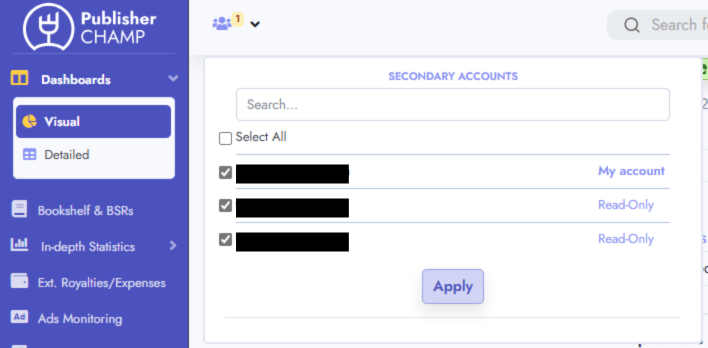
- Manage all the accounts that shared access with you by using the account selection tool at the top left of each page to select one or multiple of your linked accounts
- Publisher Champ will use your selection to show you the correct data for your applied selection
Grant Read-Only Access to another account(s)
- This allows you manage multiple books for multiple authors, synchronized with one main account and share access to that data with multiple other accounts in read-only capacity.
- You can choose which author names to share with each of your other accounts.
- Your other accounts will only have access to read data available for the selected author names.
1. Grant access to your read-only accounts
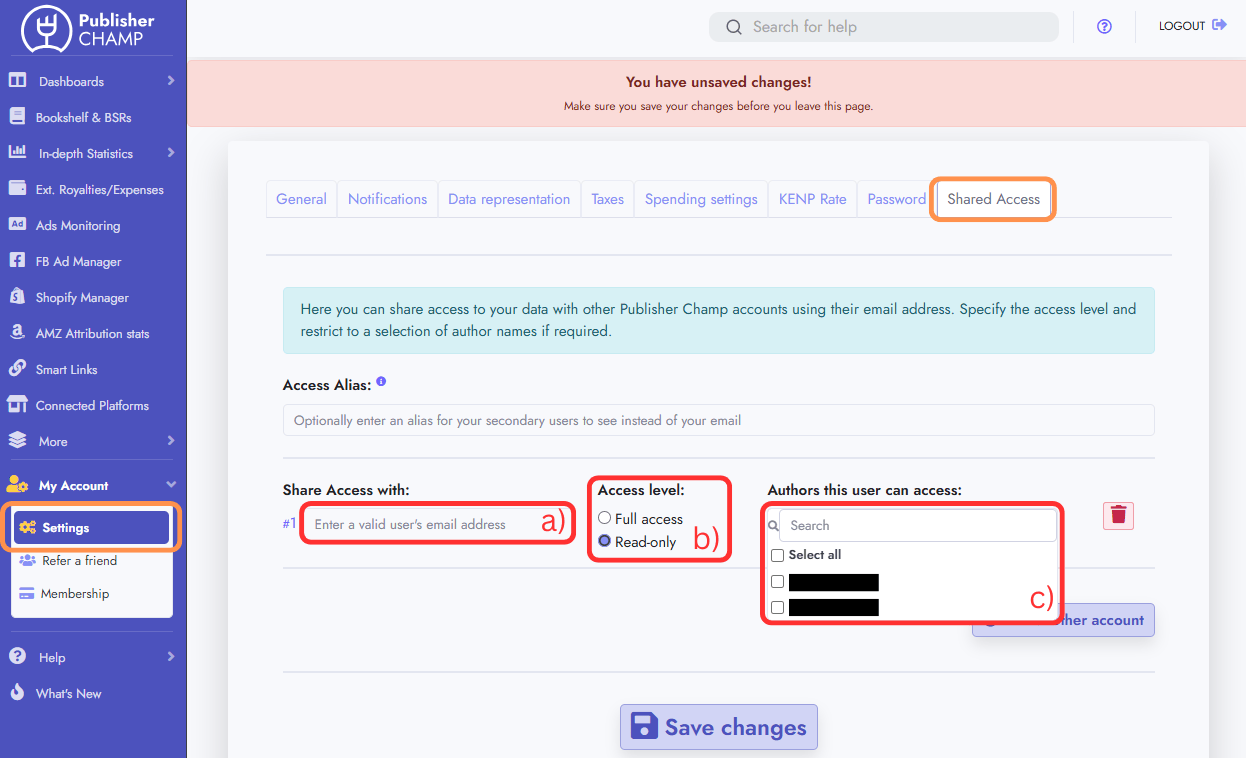
- Log in to the account you want to share access from
- Go to My account > Settings and head to the Shared Access tab
- Enter the Publisher Champ email address of the account you want to grant access to!
- Make sure that this is a registered Publisher Champ email address
- Select 'Read-only' as the access level
- Select the author names you wish to share with this user. Only data for the selected author names will be shared with this user
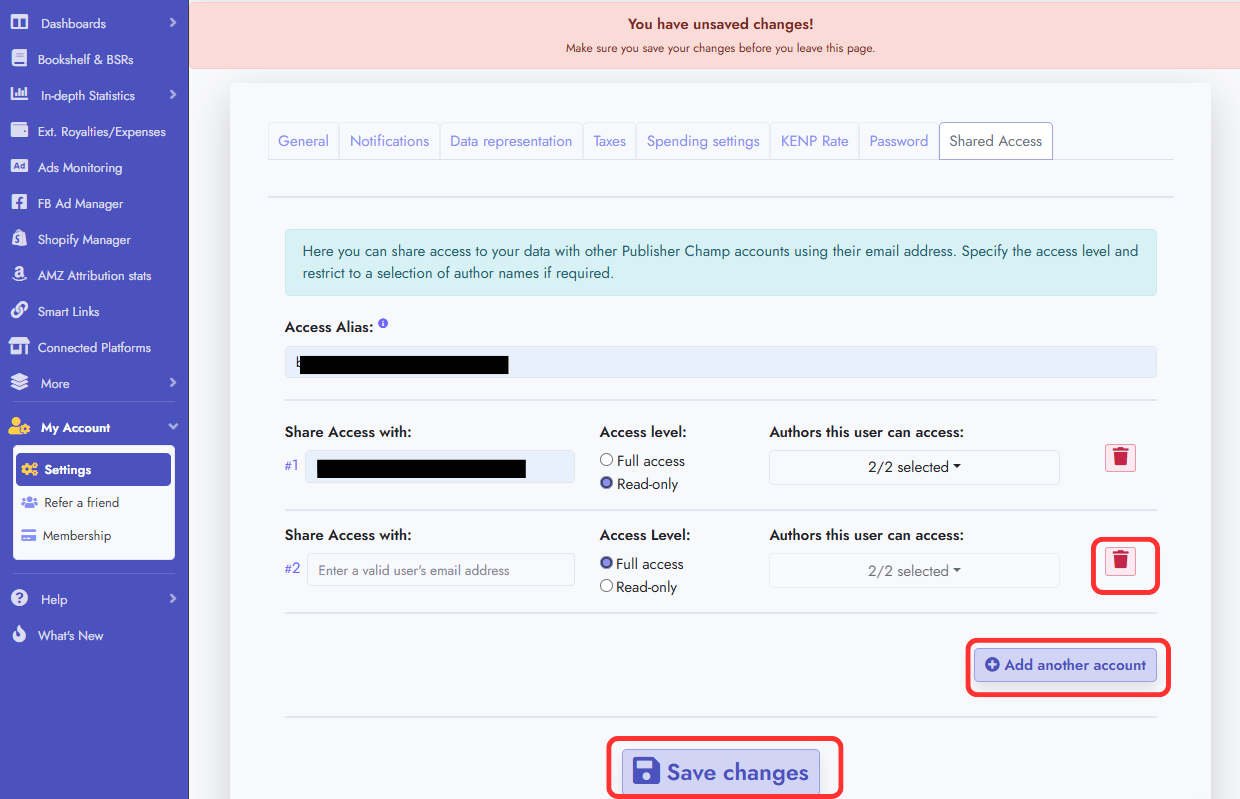
- Click the 'Add another account' button to add a new row in order to share access with another account, or, click the trash icon to remove a row. Then, repeat steps 2a to 2c for as many accounts as required
- Click the 'Save Changes' button at the bottom of the page to save your changes
note
Please note: You may Optionally set an 'Access Alias' via the input box at the top of the form. This will be displayed to your read-only accounts when referencing your main account. If you leave this blank, your email address will be displayed to your read-only accounts instead
2. Success!
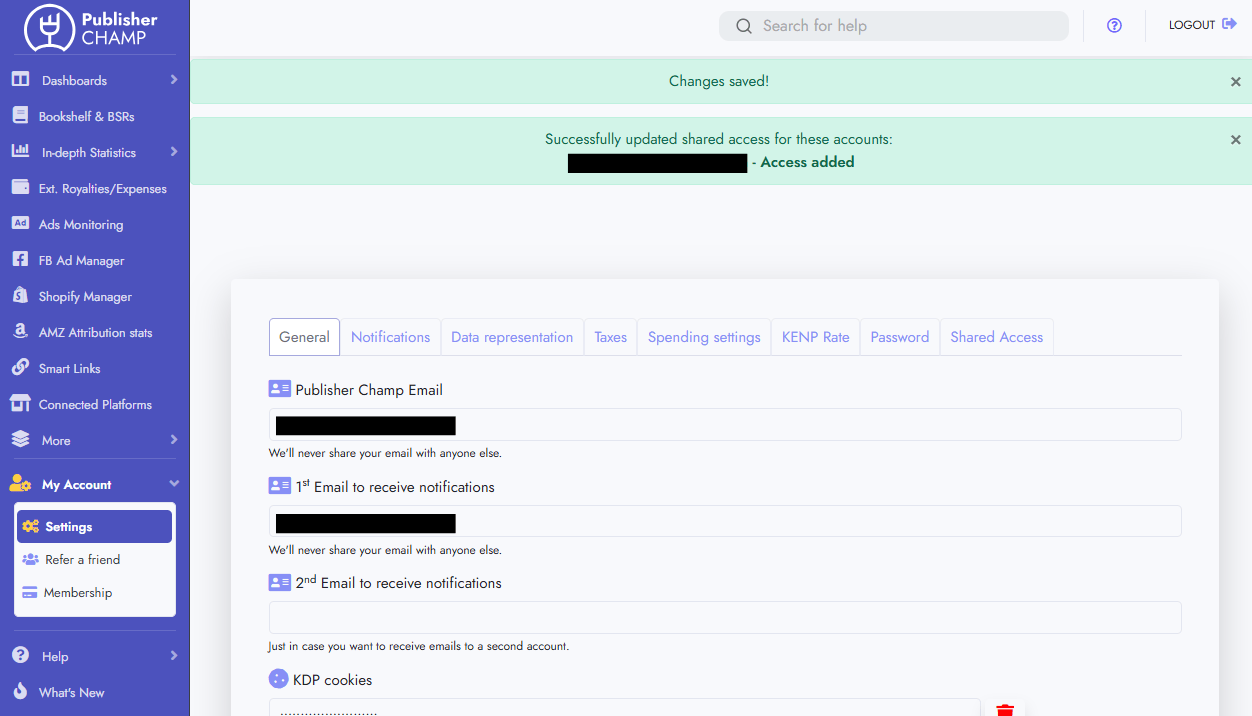
- After successfully saving your changes, your read-only accounts will be able to view the data for the selected author names specified