How to Synchronize Your BookBub Ads
info
If you encounter errors, missing data, or unexpected behavior, report it immediately so it can be addressed.
Prerequisites
- Access to your account’s Account Setup section
- The browser extension installed and enabled
Steps
1. Open Account Setup
Go to the Account setup page.
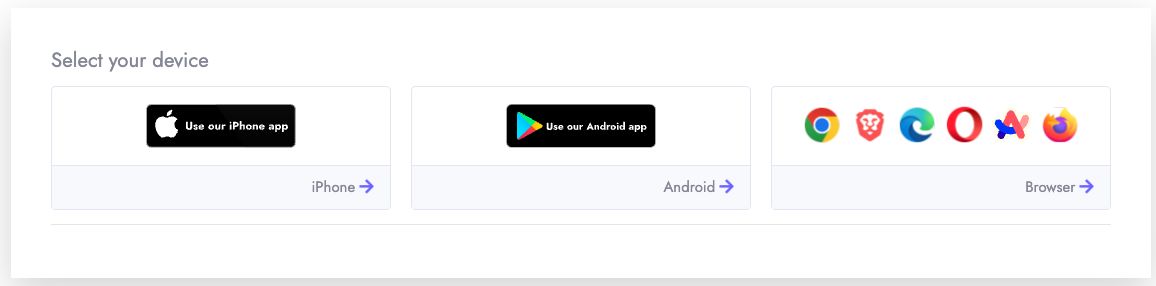
2. Select Browser Setup
Click the Browser option.
3. Install the Extension
If the browser extension is not already installed, install it before proceeding.
4. Synchronize BookBub Ads
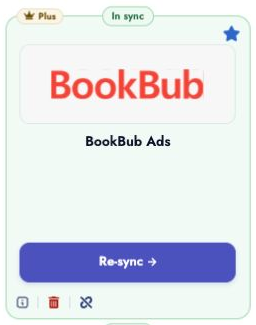
- Search for BookBub Ads in the list of available platforms.
- Click Start sync for your first connection, Sync now if the card is out of sync, or Re-sync to refresh an existing connection. Follow the login steps.
tip
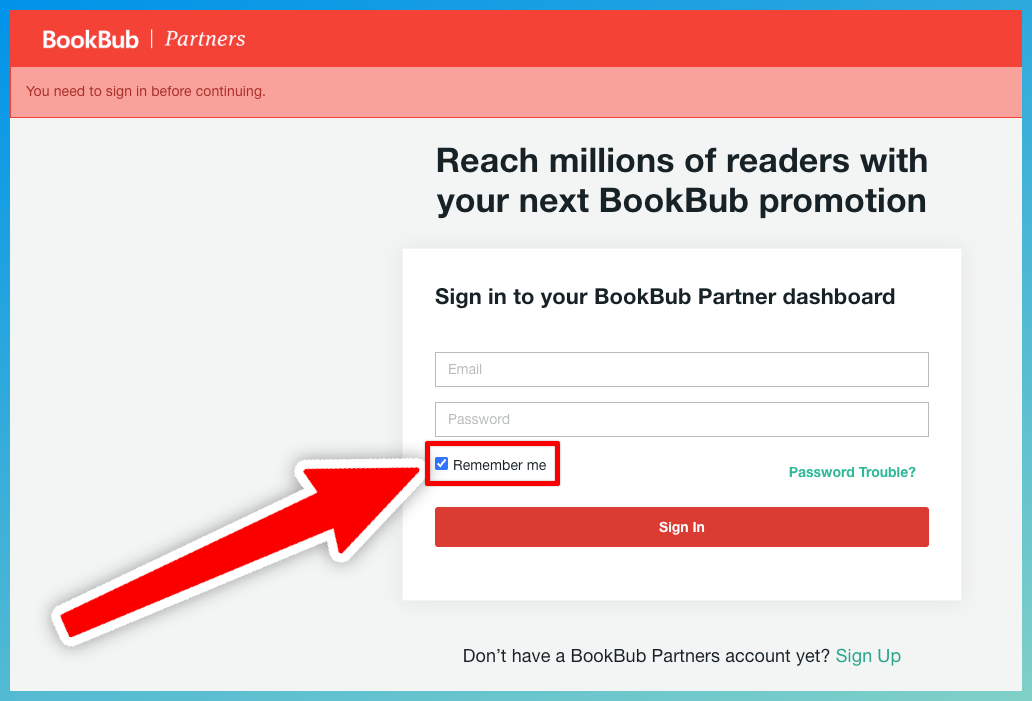
- If you want your BookBub connection to stay in sync longer, make sure to check the "Remember me" checkbox before you login!
5. Access BookBub Manager
Navigate to Platform Tools > BookBub Manager, or go directly to the BookBub Manager page.
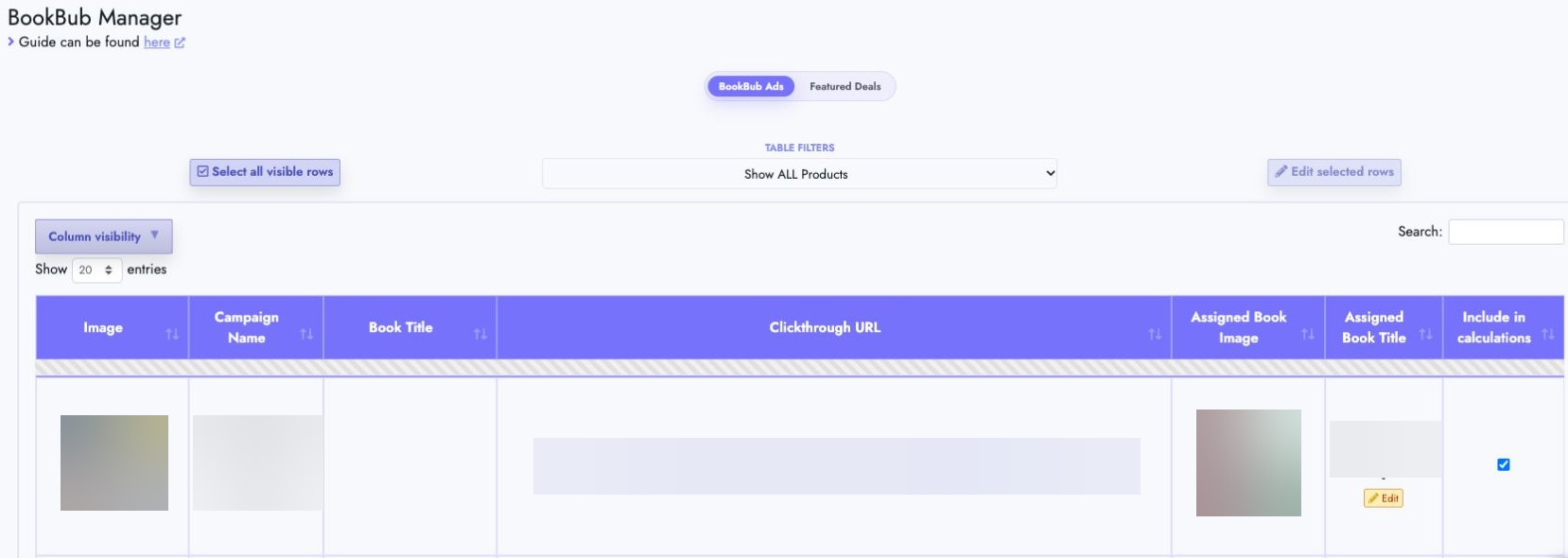
6. Use the Ads and Featured Deals tabs to review imported data. Assign any row that has not been auto-assigned to a book by clicking its yellow Edit button.
Only Featured Deals with a recorded cost are shown. Use the Include in calculations control to decide whether a deal fee contributes to BookBub Spend, Total Spending, net royalties, Power Table results, API/MCP results, and daily, weekly, or monthly reports.
info
- To speed up campaign assignment, select multiple rows and use Edit selected rows to assign them together.