How to archive books and products in Publisher Champ
If you have books or products you no longer want included in Publisher Champ, you can archive them from the BoIf you have books or products you no longer want appearing in title searches across Publisher Champokshelf & BSRs page. Archiving excludes their sales and spend from your reporting and removes them from title searches across Publisher Champ. You can restore them at any time by clearing the same checkbox.
The archive control is a checkbox in the Archived column at the far right of the table.
Archiving a book or product excludes its sales and spend from Publisher Champ reporting, as well as removing it from title searches. You can restore it at any time by clearing its Archived checkbox.
Archive a book or product
- Open Bookshelf & BSRs from the left-hand menu.
- Under View catalogue as, select All variants to see each format and platform listing separately.
- Find the book or product using the search box above the table. Check its ASIN/ID, platform, and format to make sure you have the correct listing.
- Go to the far-right Archived column. If it is outside your screen, scroll the table horizontally to the right. If the column is hidden, enable Archived under Column visibility.
- Tick the Archived checkbox on the matching row.
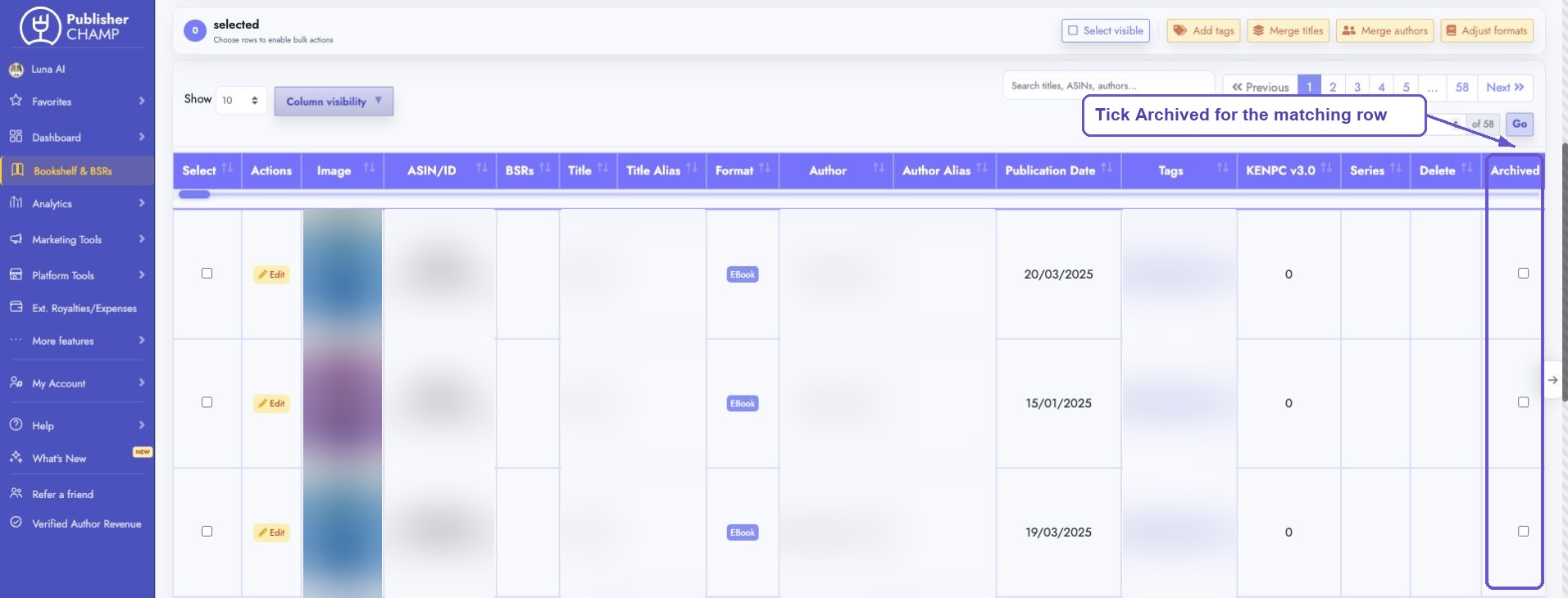
The change saves automatically. Wait for the Changes saved message and the table to refresh. You do not need to click a separate Save button. Archived rows appear faded when they are included in the table.
Use the checkbox in the Archived column for this action. The Select checkbox at the left of the table is for selecting rows for bulk actions.
Find archived books and products
Use the Status filter above the table to choose which listings you see:
- All books shows both live and archived listings.
- Live only shows listings that have not been archived in Publisher Champ.
- Archived only shows archived listings so you can review or restore them.
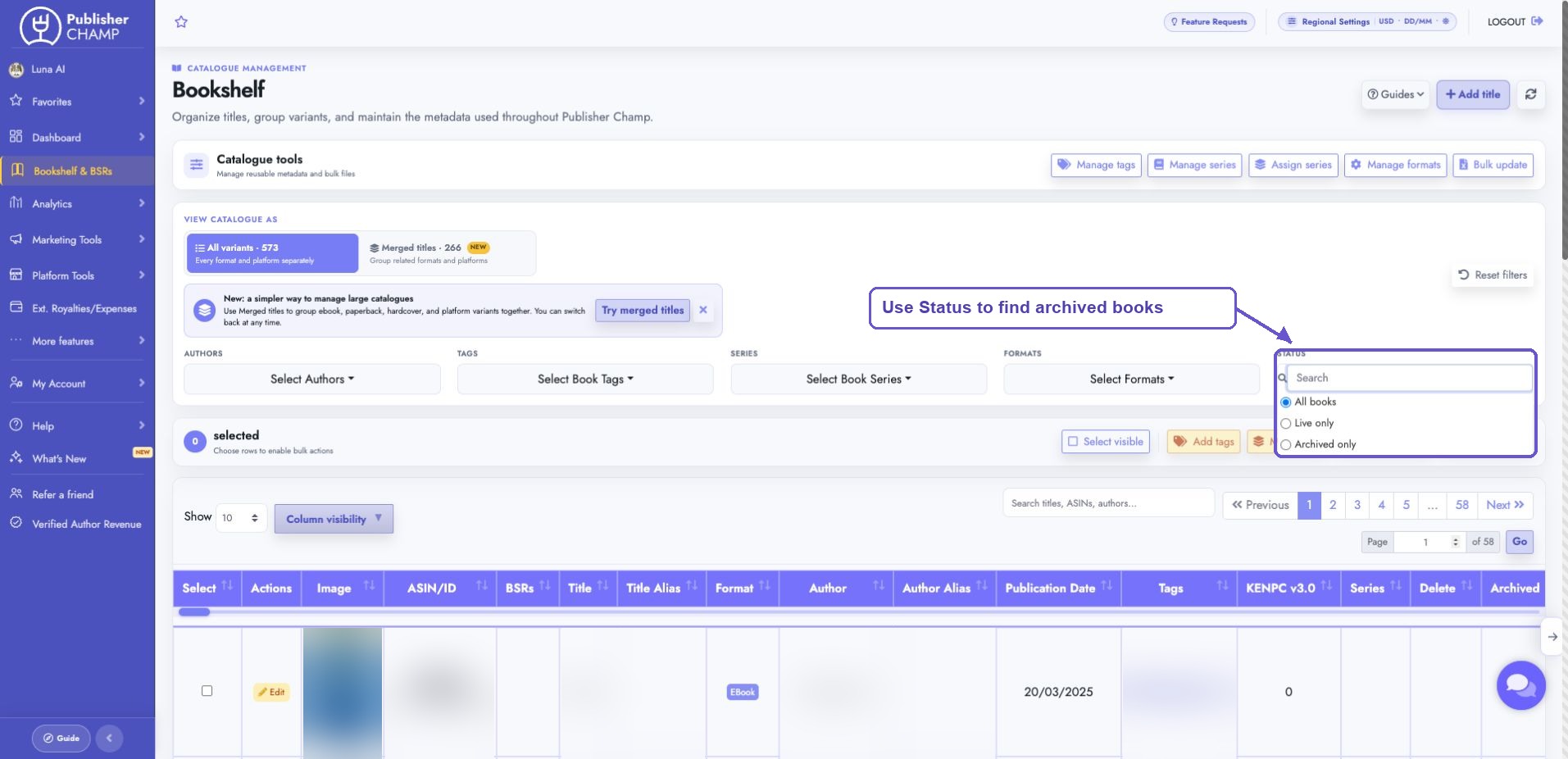
If a listing is missing, check the Status filter along with any other filters or search text you have applied.
Restore an archived book or product
- Set Status to Archived only or All books.
- Find the listing you want to restore.
- Untick its Archived checkbox at the far right of the table.
- Wait for the Changes saved message and the table to refresh.
If you are viewing Archived only, the restored listing will leave that filtered view. Switch to All books or Live only to find it again.
Books with several formats or platforms
Archiving applies to the individual listing you choose. For example, archiving a paperback does not automatically archive the eBook or another platform's listing. Archive each relevant variant if you want to archive the whole book across its formats and platforms.
If you prefer Merged titles, click Variants on the book's master row to expand its listings. Use the Archived checkbox inside the expanded table to archive or restore each variant. The master row displays Manage per variant in the Archived column.
Does archiving remove a book from sale?
Archiving here changes the listing's status inside Publisher Champ. It does not unpublish your book or remove your product from its retailer or store.
For more catalogue management options, see the Bookshelf & BSRs guide.