How to bulk update title Metadata via Excel
info
Why use bulk updates?
If you manage hundreds of titles, manually updating metadata can take hours. Common issues include:
- Amazon KDP often assigns incorrect publication dates
- Series order may be wrong and needs correction
- Book aliases need to be assigned across multiple titles
- Author names require updating or grouping
Bulk updates let you fix all these issues in minutes instead of hours!
warning
Important: Changes are permanent once applied. Always review your Excel file carefully before uploading.
Steps
1. Download your book metadata
- Navigate to the Bookshelf & BSRs page
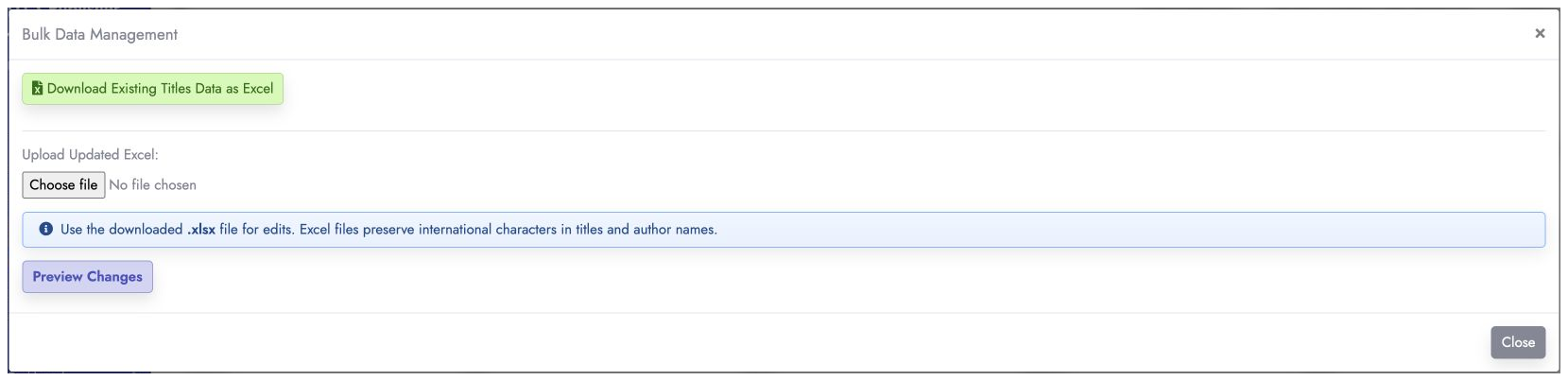
- Click Bulk update under Catalogue tools, then Download Existing Titles Data as Excel.

2. Edit the downloaded Excel file
The downloaded .xlsx file contains all your books. Each column represents specific metadata you can modify:
| Column Name | Description and Usage |
|---|---|
| Modified | Update to "Yes" only if you have modified the row and want to apply the changes |
| Unique ID | Do not modify. This is your book's unique identifier in the system |
| Source | The platform/distributor for your book. Options: "ACX", "Amazon", "Apple Books", "Barnes & Noble Press", "BookMundo", "BookBub Ads", "Draft2Digital", "Facebook", "Google Books", "IngramSpark", "Kobo Writing Life", "PublishDrive", "Shopify", "Spotify for Authors", "Voices by INaudio", "WooCommerce", "Other". Select only one |
| Title | Leave as is. Your book's title from the source platform |
| Title Alias | Optional. Use to group books under a common name or override the display title |
| Format | Book format. You can use a built-in format—"Paperback", "Hardcover", "EBook", "KENP Reads", "Other", or "Audiobook"—or any custom format already created for your account. Custom format names must match exactly, including capitalization |
| Author | Leave as is. The author name from the source platform |
| Author Alias | Optional. Use to group books under a pen name or override the author display name |
| Publication Date | The book's publication date on the source platform. Must be in YYYY-MM-DD format, e.g., 2026-01-12 |
| KENPC v3.0 | Amazon's Kindle Edition Normalized Page Count value (learn more). Enter as a positive integer or leave blank |
| Series Name | Assign your book to a series. New series names will be created automatically |
| Number In Series | Your book's position in the series (e.g., 1, 2, 3). Must be a positive integer. Leave blank if not part of a series |
| Archived | Set to "Yes" if you want to archive the row/book and hide any data related to this row across the whole platform. Set to "No" to restore the row/book |
Tips for editing:
- Use Excel, Google Sheets, or any spreadsheet software
- Keep the Unique ID column unchanged
- Keep each
Unique IDexactly as downloaded (do not convert or rewrite this column) - Make sure dates are formatted correctly: 2026-01-12
- Use consistent series names to group books together
- To use a custom format, create it from Bookshelf → Manage formats before uploading the spreadsheet
- Enter custom format names exactly as they appear in Manage formats, including capitalization
- To clear an existing Title Alias or Author Alias, leave that cell blank and keep
Modifiedset to "Yes" - Format is required and cannot be blank
- Publication Date is required and cannot be blank
- Leaving KENPC blank sets it to 0
3. Upload your updated file
- Return to the Bookshelf & BSRs page
- Open Bulk update, choose your modified Excel file under Upload Updated Excel, then click Preview Changes.
- Publisher Champ will show a spreadsheet-style preview table with all columns for each modified row
- Changed cells are highlighted and show the old value struck through with the new value underneath
- Review the preview carefully, then click Looks good, proceed to apply the changes
- If something looks wrong, click Abort. No changes are applied until you confirm the preview
- If there are any errors, they'll appear below the upload button
- Fix any errors and re-upload until successful
4. Done!
Your title metadata is now updated! All changes will be reflected immediately across your bookshelf.
Need help? If you encounter any issues, check that your Excel file follows the format requirements above, especially:
- Modified: Change to Yes if you want your changes to be applied
- Date format: YYYY-MM-DD
- Source values match the supported platform options
- Format values match a built-in format or an existing custom format exactly, including capitalization
- KENPC and Number In Series are positive integers (or blank)