Connect Multiple BookBub Accounts
If you publish under several pen names, you can connect each BookBub account to the same Publisher Champ account. Each connection has its own name, sync status, and last successful update. Your BookBub spending still appears together in your reports.
BookBub requires a separate Partner Dashboard account and email address to claim each additional pen-name profile. Read BookBub's explanation.
See which account needs attention
Open Account Setup > Browser, find BookBub Ads, and look under Your BookBub accounts. Each connection shows its saved name, BookBub email when available, status, and last successful sync. The account list scrolls inside the card when you have several connections; Add account stays below the list.
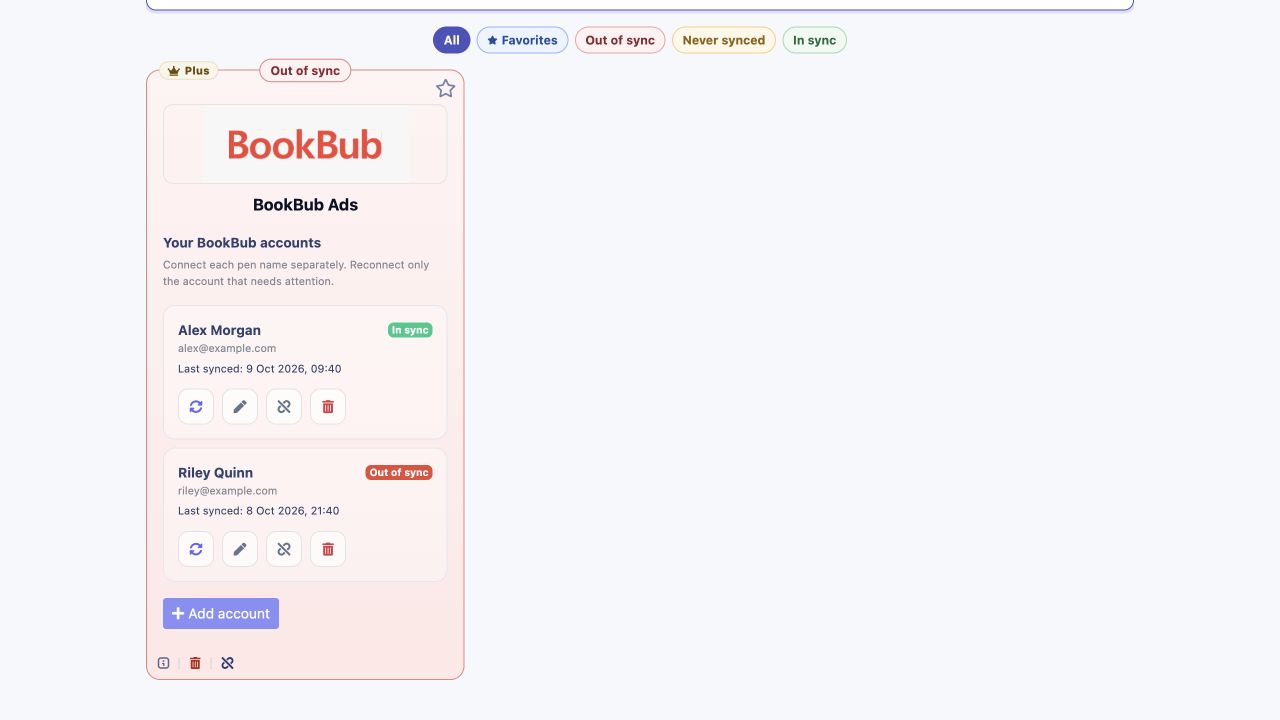
The screenshots use example pen names and email addresses.
In this example, Alex Morgan is in sync and Riley Quinn needs to reconnect. Riley's expired login does not disconnect Alex or replace Alex's imported history.
| Status | What it means |
|---|---|
| In sync | The connection has completed an import and does not currently need attention. |
| Out of sync | The latest import failed or the saved login needs refreshing. |
| Syncing | Publisher Champ is importing this account's data. |
| Awaiting first sync | The login is saved, and the first successful import has not been recorded yet. |
| Disabled | Automatic imports have been stopped for this connection. |
The BookBub card's overall status covers all enabled connections. An out-of-sync account can make the card show Out of sync, while the individual account rows show which connection needs attention.
Add another pen name
- Install and enable the Publisher Champ browser extension if you have not already done so.
- In the BookBub card, click Add account.
- Follow the login steps. If BookBub is already signed in to another account, sign out there and sign in with the email for the pen name you want to add.
- Check Remember me on BookBub's login screen.
- Return to Publisher Champ and complete the connection steps if the extension does not start synchronization automatically.
The new account appears as its own connection. Repeat these steps for your other BookBub accounts. Connecting an account that is already listed refreshes that connection instead of adding a duplicate.
Give each connection a recognizable name
Publisher Champ identifies the login separately from the name displayed on the connection. BookBub may supply a company name or account-holder name, so use Rename to give the connection a label such as your pen name or imprint.
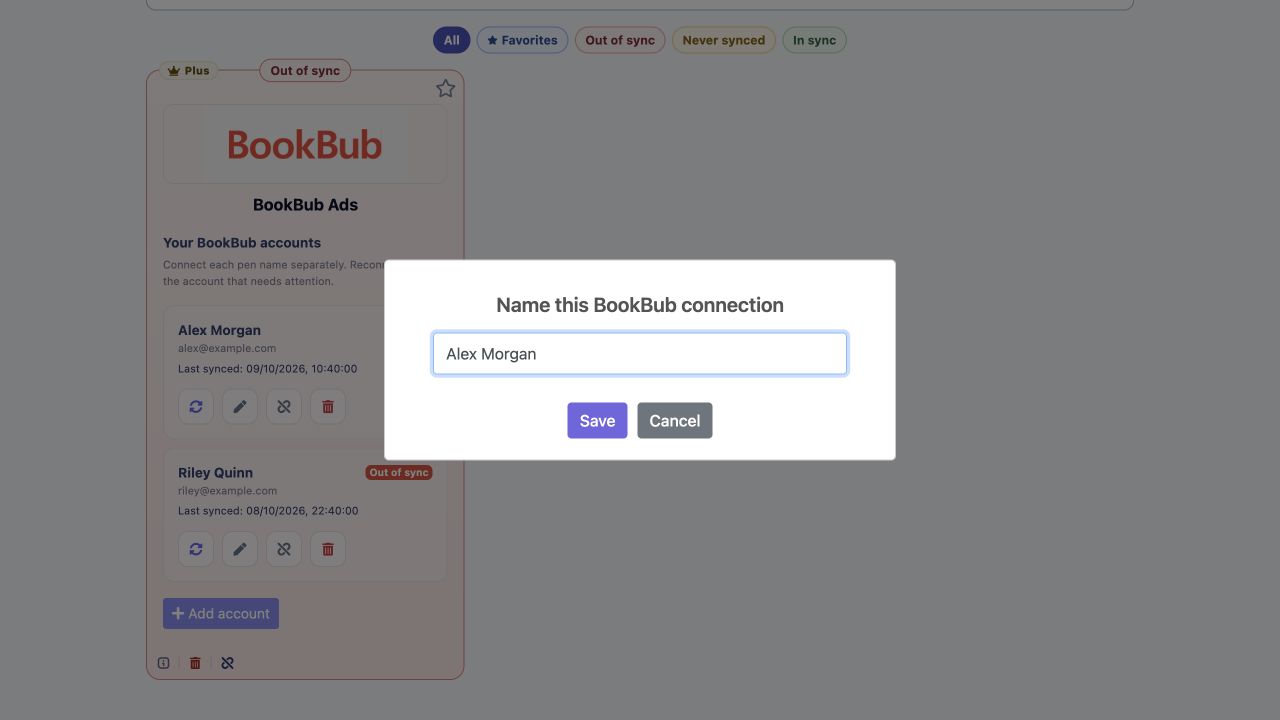
The pencil icon opens Rename account. Enter the name and click Save. This changes the label in Publisher Champ; it does not change your BookBub account or author profile.
Reconnect one account
Click Reconnect inside the account row that needs attention, then follow the BookBub login steps. The circular arrows icon is Reconnect. Hover over an action icon to see its label; labels also appear when navigating with the keyboard. Older screens label the reconnect action Re-synchronize. It is available for healthy connections too; its presence does not mean the login has expired.
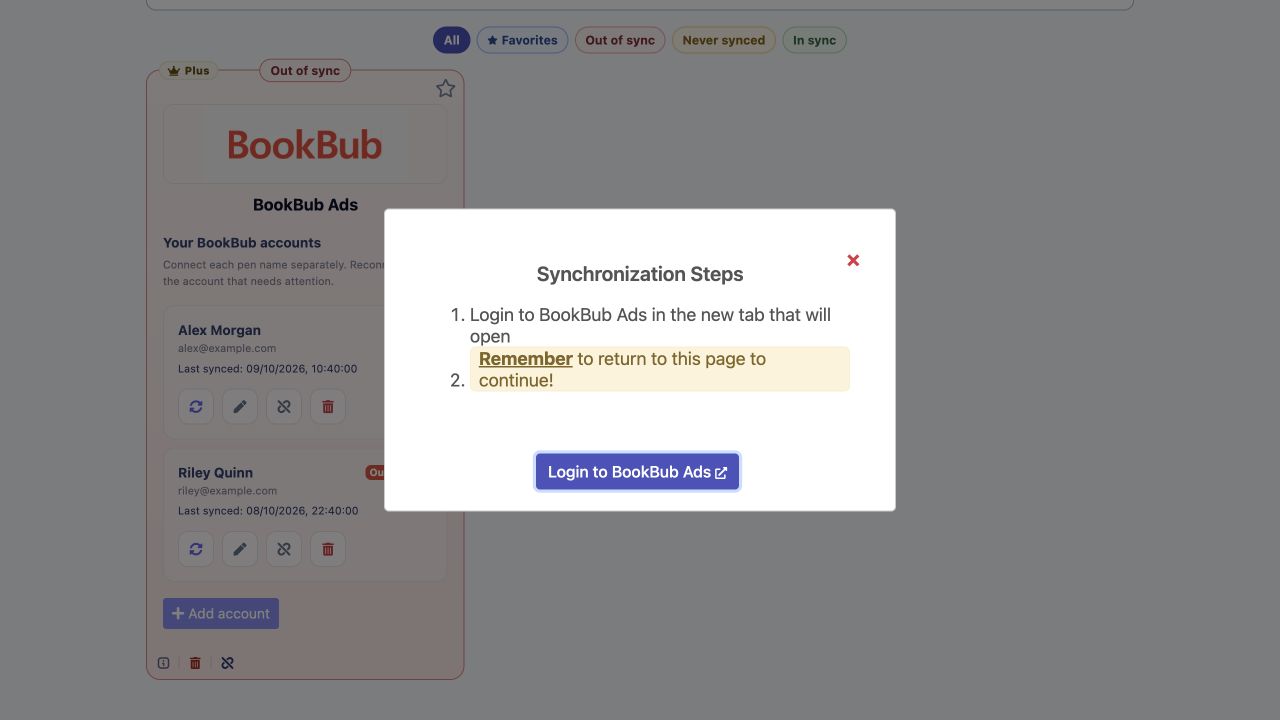
Sign in to the account shown on that row. If you sign in to a different BookBub account, Publisher Champ asks you to switch accounts rather than replace the selected connection. A successful reconnection refreshes that account's login and starts its import.
Your other BookBub connections keep their own saved logins and sync states.
Keep your existing history
Your existing BookBub connection and imported data are carried over automatically. You do not need to delete and recreate the connection. Its ads, Featured Deals, and book assignments stay together.
An older connection may initially appear as Existing BookBub account. Reconnect it to verify its identity, then use Rename if you want a pen-name label. A healthy migrated connection keeps its In sync status. If no successful-sync timestamp was previously recorded, the row shows Timestamp available after the next import until the next completed import supplies it.
The existing extension and mobile cookie-submission flow continue to work. Use Account Setup > Browser to manage the separate connection rows.
Review your combined BookBub spending
Go to Platform Tools > BookBub Manager to review the Ads and Featured Deals tabs. Assign unallocated rows to the right books and use the inclusion controls to decide what contributes to your calculations.
Imports and book assignments are kept separate by BookBub account. Dashboard totals, Power Table results, and reports continue to combine the spending from your connected accounts. Connecting two BookBub accounts does not require a second Publisher Champ login.
Disconnect or remove a connection
Use the controls inside the account row:
- Disconnect stops automatic imports for that account and keeps its imported history. Reconnect it when you want to resume imports.
- Remove deletes that connection and its imported ads, Featured Deals, and book mappings after confirmation. It keeps your other BookBub accounts and your Titles.
These actions do not pause or delete campaigns in BookBub. Platform-wide controls apply to all BookBub connections, so use the row controls when you want to change just one account.
For the initial setup walkthrough and BookBub Manager guidance, see Synchronize Your BookBub Ads.