How to use External Royalties/Expenses
Use External Royalties/Expenses to record revenue and spending that does not arrive through one of your connected accounts. Examples include bookstore and event sales, audiobook income, editing or cover costs, software subscriptions, and other publishing expenses.
These entries are included throughout Publisher Champ reporting according to their date, book, format, platform, country, and tag.
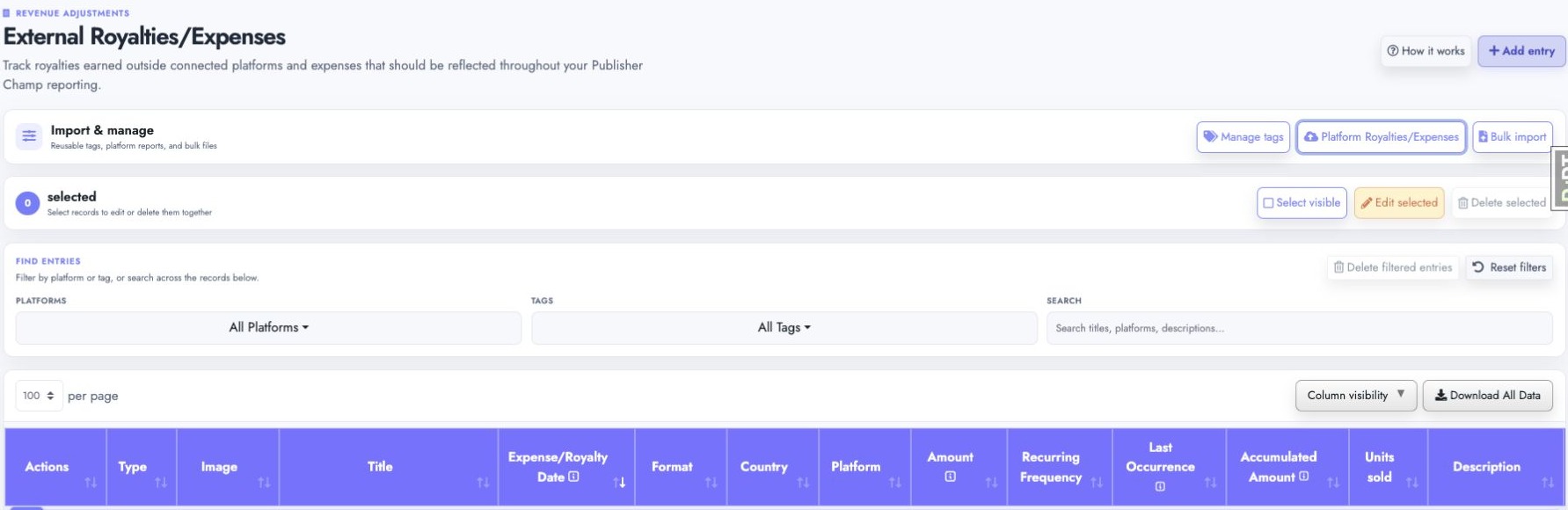
Add one royalty or expense
- Select Add entry.
- Choose Royalty or Expense.
- Select the related book or books.
- Set the date and choose whether the entry is one-time or recurring.
- Select the country, book format, platform, and currency.
- Enter the amount. For royalties or direct sales, add Units sold when known.
- Optionally assign a tag and description.
- Select Add entry to save.
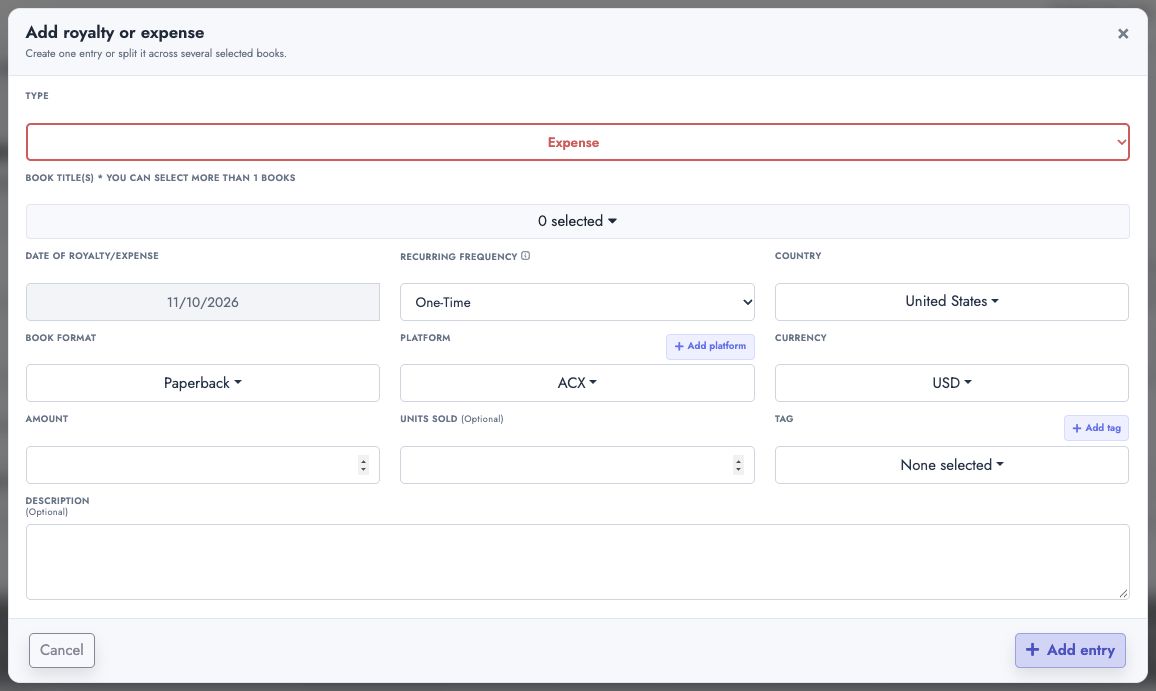
You can select more than one book. Publisher Champ creates a record for each selected book and divides the amount and units across those records. Review the distribution shown in the form before saving.
If the expense is not associated with one title, select the account-level or no-book option when it is available. This is useful for subscriptions and business-wide costs.
One-time and recurring entries
Choose One-Time when the royalty or expense happened once. Choose a recurring frequency for subscriptions or other repeating activity.
Recurring entries use the selected start date and frequency to calculate:
- Last Occurrence — the most recent generated occurrence;
- Accumulated Amount — the total accumulated from the recurring schedule.
When a recurring end date is available, set it if the charge or income should stop automatically.
Create and manage tags
Tags help you group records such as Editing, Book fairs, Subscriptions, or Audiobook royalties.
- Select Manage tags.
- Select Create new tag to add a reusable tag.
- To change an existing tag, select it and use the edit button.
- Use the delete button only when the tag is no longer needed.
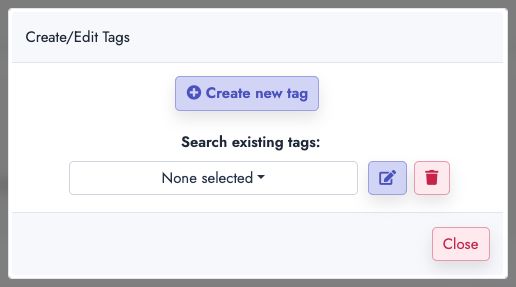
You can assign a tag while adding or editing an entry, then use the Tags filter to find all matching records.
Import a report from another platform
Use Platform Royalties/Expenses for a supported Google Books, Vendor Central, PublishDrive, BookMundo, or Shopify Bills report:
- Select the platform whose report you are importing.
- Read the displayed file-format instructions.
- Decide whether to replace existing records from that platform for the same period.
- Upload the CSV, XLS, or XLSX report.
- Select Import Data.
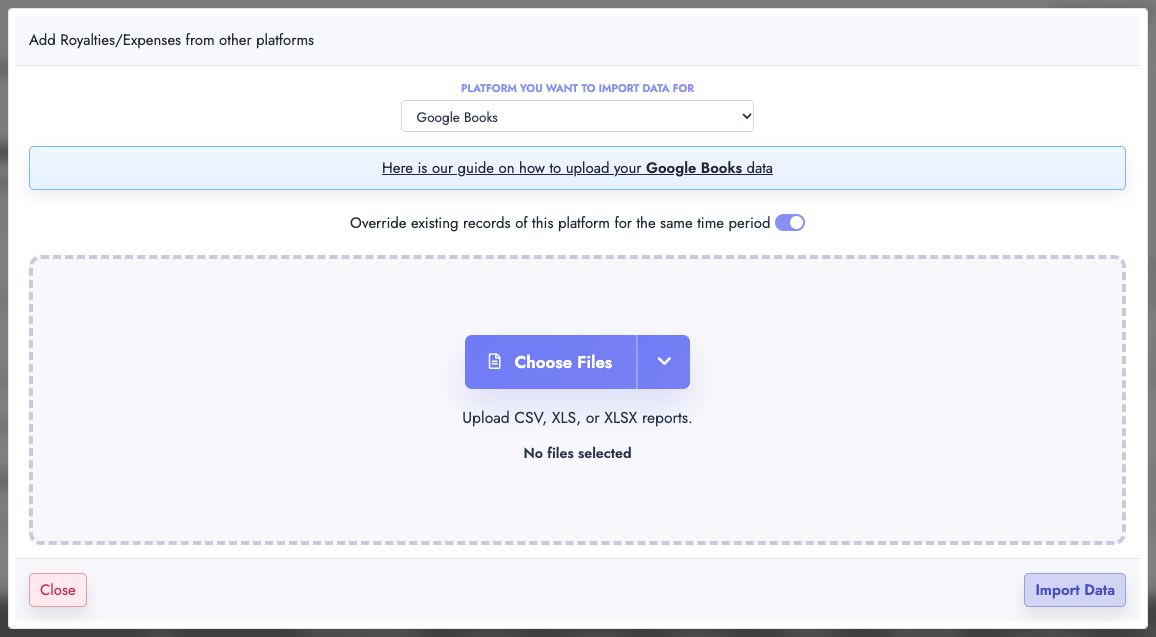
Enable Override existing records of this platform for the same time period only when the uploaded report should replace previously imported data. Leave it disabled when you want to preserve the existing records.
Import many royalties or expenses
Select Bulk import when you need to add many records at once. You can:
- open the workbook guide;
- download and complete the sample workbook;
- upload a completed workbook; or
- select Create from Scratch to build the import in Publisher Champ.

See the complete bulk royalties and expenses guide for workbook columns, examples, validation, and upload instructions.
Find and organize entries
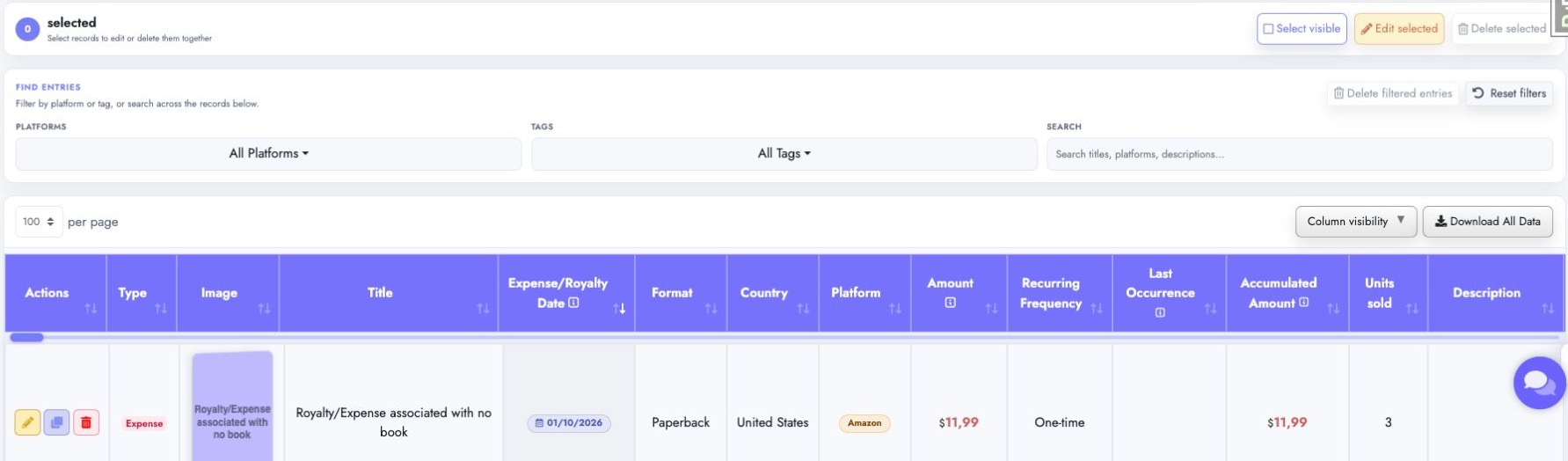
Use the controls above the table to narrow the visible records:
- Platforms filters records by one or more platforms.
- Tags filters records by their assigned tags.
- Search finds matching titles, platforms, and descriptions.
- Reset filters clears the platform, tag, and search filters.
- Delete filtered entries permanently removes the entries matching the active search, platform, and tag filters.
- Column visibility shows or hides optional table columns.
- Download All Data exports the available external royalty and expense data.
Select any sortable table heading to change the ordering. Use the purple horizontal control immediately below the headings to move through wide tables without losing the column headings.
Edit, duplicate, or delete an entry
The Actions column stays at the beginning of each row:
- the pencil edits the entry;
- the copy button duplicates it as a starting point for a new entry;
- the trash button deletes it.
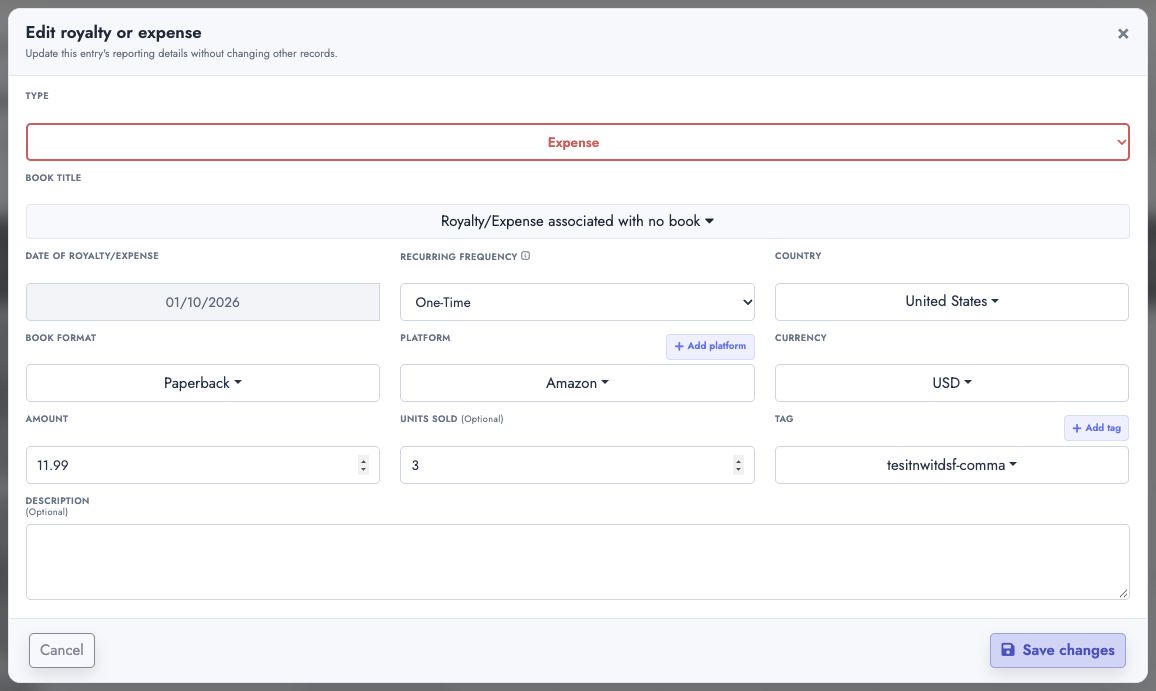
Edit one entry
Select the pencil, update the required reporting fields, and select Save changes. Editing changes only that record.
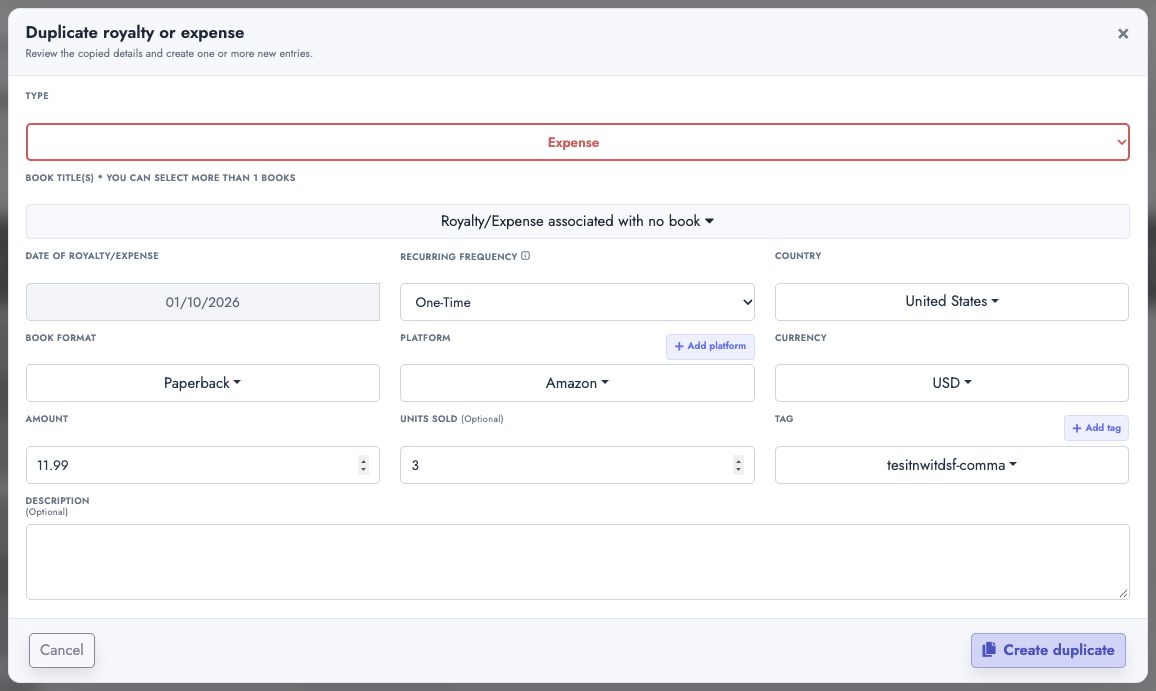
Duplicate an entry
Select the copy button to open a prefilled copy. Review the values, choose one or more books, and select Create duplicate. This is useful when several entries share the same platform or amount but have different books or dates.
Edit several entries together
- Select at least two required rows, or choose Select visible to select the rows on the current page.
- Select Edit selected.
- Change only the fields that should be applied to the selected records.
- Save the changes.
Fields left unchanged keep their existing values.
Delete selected entries
- Select the rows you want to remove, or choose Select visible to select the current page.
- Select Delete selected.
- Review the number of selected entries in the confirmation.
- Select Delete entries to permanently remove them.
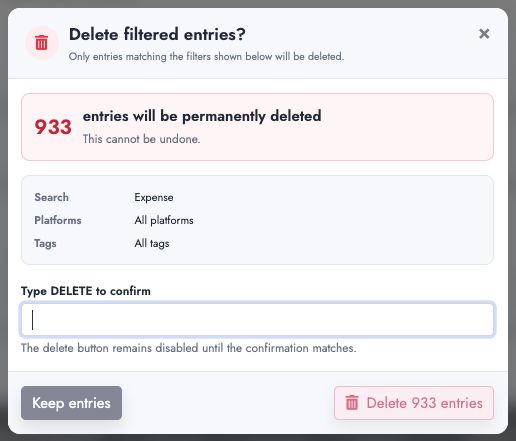
Apply at least one search, platform, or tag filter before deleting. The button shows the number of matching entries, and the confirmation lists the exact filters being used. Type DELETE to enable the final action.
Choose the correct book, format, and platform
These fields serve different reporting purposes:
- Book assigns the activity to a title.
- Book Format classifies the edition or format, including any custom book format.
- Platform records where the royalty, sale, or expense originated, including any custom platform.
- Tag provides your own reusable grouping across entries.
For the cleanest reporting, use the same format and platform names that you use elsewhere in Publisher Champ.