How to upload your Shopify bills
Import Shopify subscriptions, app charges, shipping charges, and other billed fees into Ext. Royalties/Expenses. These are account-level expenses with Shopify as their platform and no associated title. Shopify orders and customer refunds continue to come from your connected Shopify account.
Export your bills from Shopify
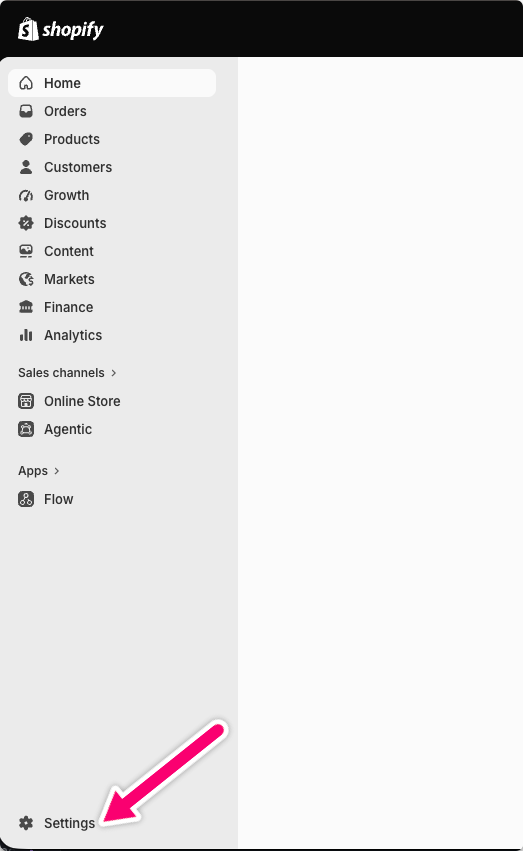
- Open your Shopify admin and select Settings at the bottom left.
- Select Billing.
- In Past bills, open the … menu.
- Select Export bills and download the CSV export for the bills you want to import. Use the bill charge export, rather than Create expense report or an orders export.
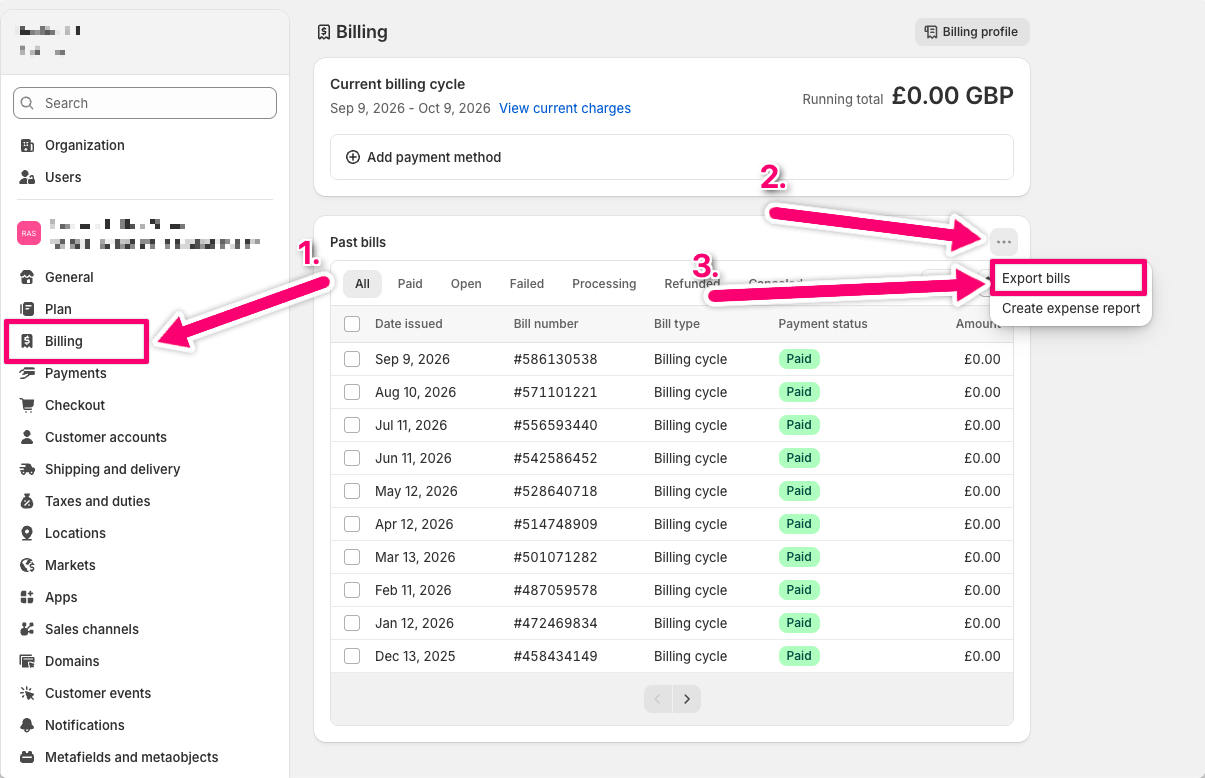
Keep the original CSV headers and values. You can select several exports when uploading, including exports from different stores.
Upload to Publisher Champ
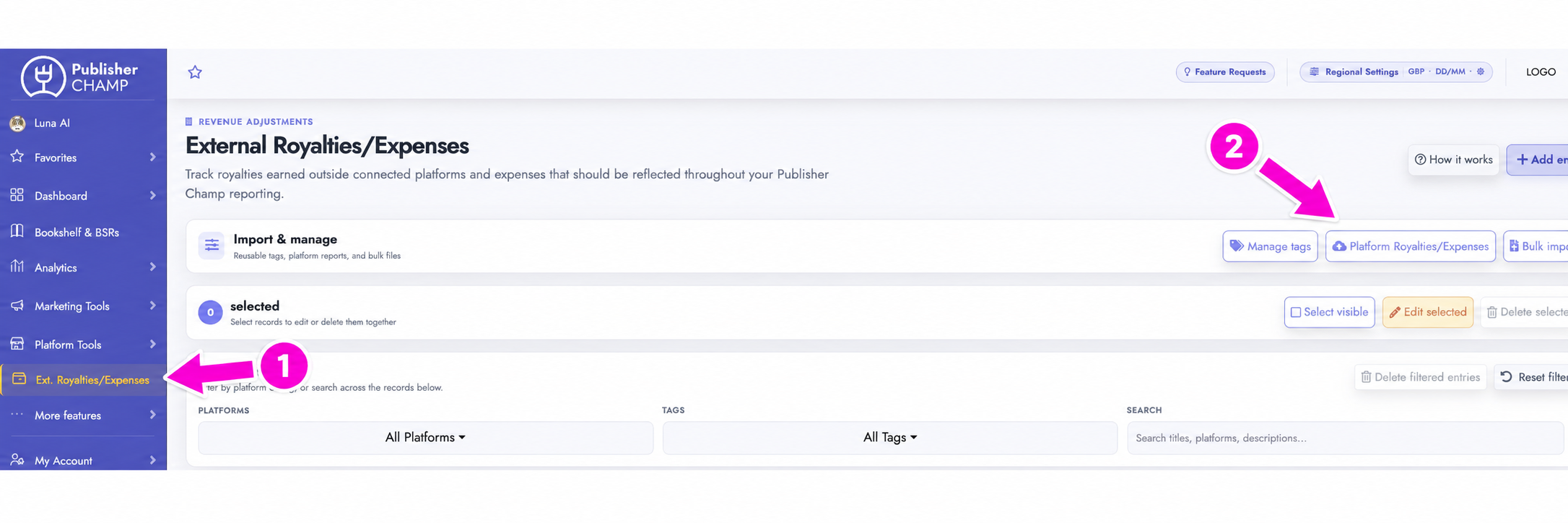
- Open Ext. Royalties/Expenses from the left sidebar.
- Select Platform Royalties/Expenses.
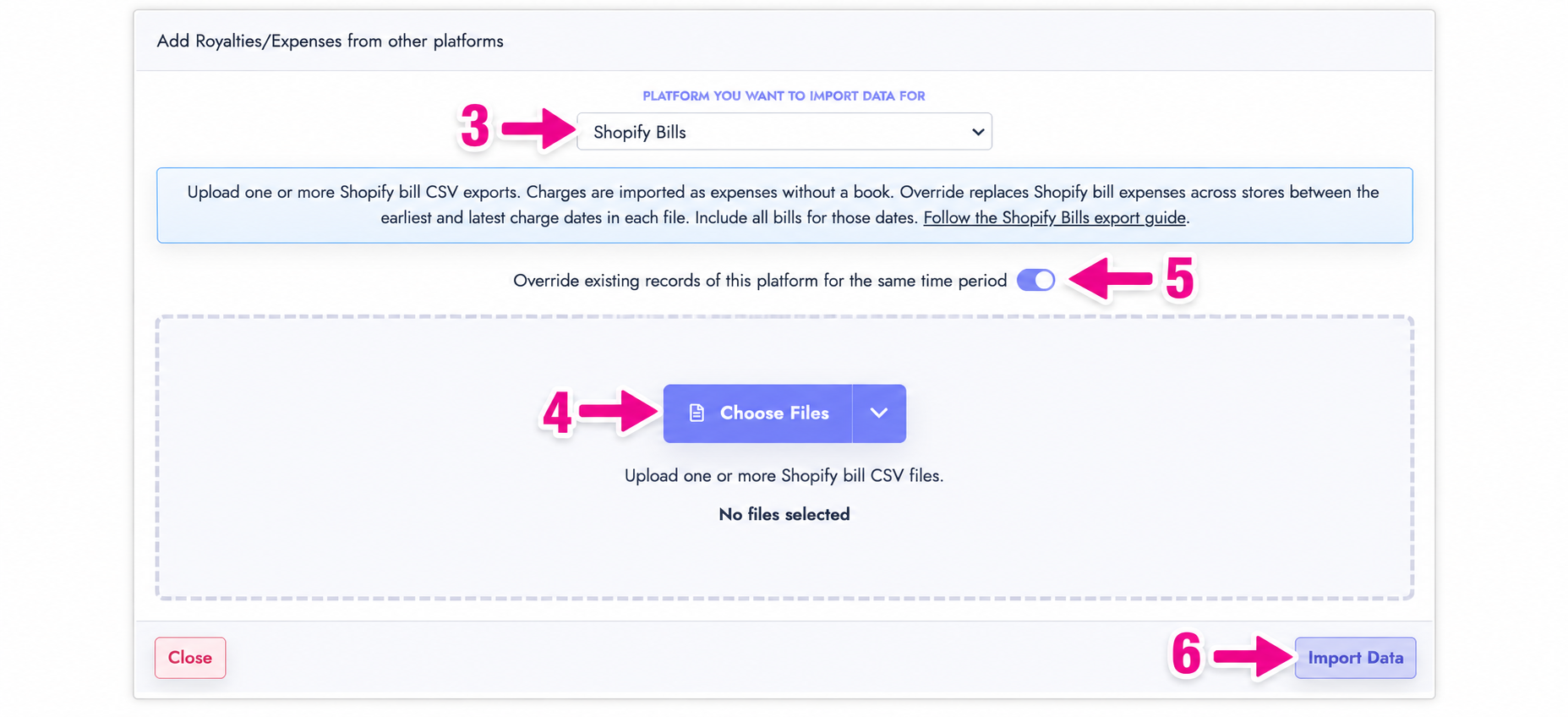
- Choose Shopify Bills.
- Select Choose Files and select one or more CSV files, or drag them into the upload area.
- Leave Override existing records of this platform for the same time period enabled when replacing earlier imports.
- Select Import Data.
| Expense field | Shopify CSV column |
|---|---|
| Description | Bill # and Description, displayed as Bill #592217260 - Loox 1.8K-2.1K orders |
| Date | The local calendar date in Date |
| Amount | Amount, as billed by Shopify |
| Currency | Currency |
| Platform | Shopify |
| Title | No associated title |
The importer uses Amount and Currency, not Original amount and Original currency. For example, a charge originally listed as 0.25 CHF but billed as 0.28 USD is imported as 0.28 USD. No additional currency conversion is applied during import.
Positive charges increase expenses. Negative amounts are retained as credits that reduce expenses. Zero-value lines are retained too.
Replacing an earlier import
Override applies from the earliest through latest value in each file's Date column, inclusive. Account-level Shopify bill expenses with descriptions starting Bill # inside those ranges are replaced by the uploaded charges. Dates in gaps between separate files are left untouched. The export does not specify a selected report period, so the range comes from the Date column, not billing-cycle columns.
Upload the complete charges for any range you want to replace. An incomplete export can remove earlier bill charges within that range. Shopify orders, customer refunds, expenses with other descriptions, and dates outside these ranges are preserved. Replacement applies across stores: include all Shopify bill charges for the affected dates, even when they come from different stores. An account-level Shopify expense manually entered with a Bill # description is also treated as a bill during replacement.
Repeated charge lines across files selected together are imported once, while repeated lines within one export are retained. Turning override off appends the upload; uploading those same files again in a later upload will create duplicates.
All files are validated before any records are changed. If a file is empty, has the wrong headers, or contains an invalid amount, currency, or date, fix that file and submit the batch again.