How to manage your WooCommerce products
WooCommerce products are now managed in Bookshelf & BSRs. The former WooCommerce Manager page displays a link to the new location.

Connect your store
- Open the Account Setup page.
- Find WooCommerce and follow its connection wizard to authorize your store.
- Allow the initial import to finish, then open Bookshelf & BSRs.
The integration is available to Champ Plus users and during the free trial. Once connected, WooCommerce data synchronize every four hours.
Manage products in Bookshelf
Use View catalogue as to switch between All variants and Merged titles. Search for a product or use the author, tag, series, format and status filters to find it.
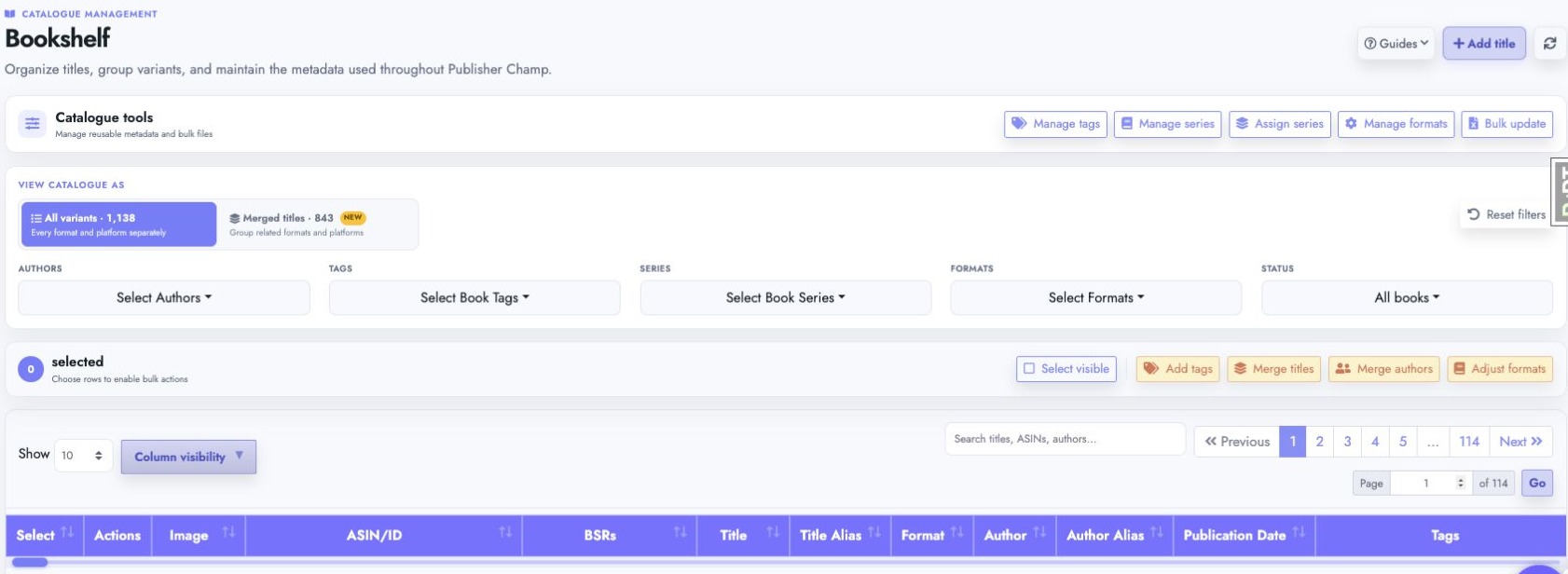
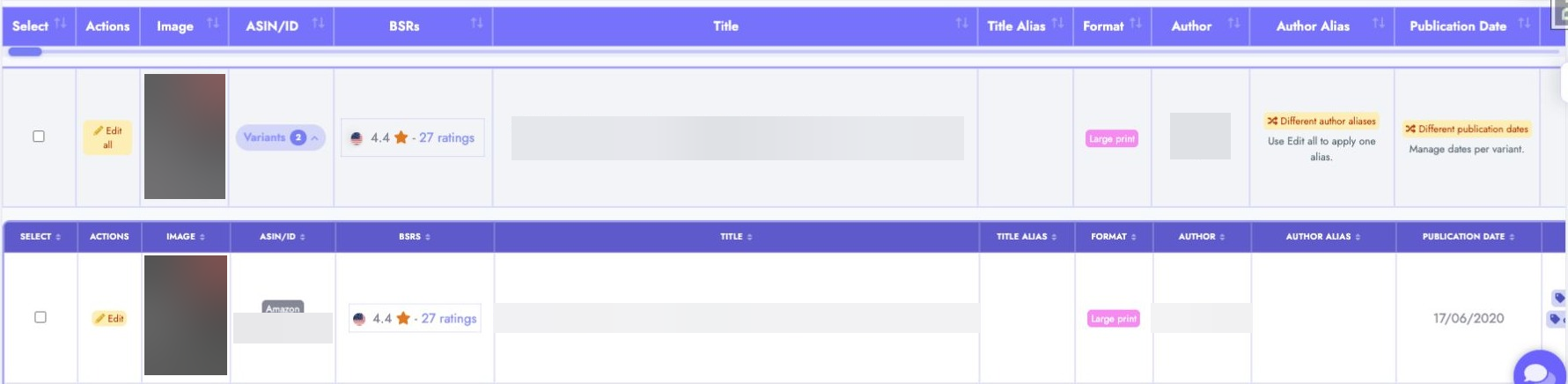
Use the title's Edit action to update its details. To group a store product with another edition of the same book, follow the merge books guide.
For bundles or products that need their own title, click Add title in the upper-right corner and enter a unique identifier with the product's title and format. See the Bookshelf guide for the current catalogue workflow.